How to Turn an iPhone Screenshot into Markdown
Convert an iPhone screenshot into Markdown from Photos, review recovered headings and text, and copy, save, or share the result with clear privacy boundaries.
Try CleanMD: PDF to Markdown on iPhone
Choose a screenshot from Photos, convert it, review the Markdown, and copy, save, or share the result.
To turn an iPhone screenshot into Markdown, select the image from Photos, convert it, review the recovered structure, and then copy, save, or share the result into the tool where you will use it.
Start With a Readable Screenshot
Crop away unrelated interface elements when possible and make sure the text is large enough to read. A screenshot with clear contrast, complete lines, and minimal visual clutter gives a document parser a better source than a heavily compressed or partially hidden image.
Keep the original screenshot until you have checked the output. Conversion can recover useful text and structure, but it may not preserve every column, icon, table, or visual relationship exactly.
Import the Image From Photos
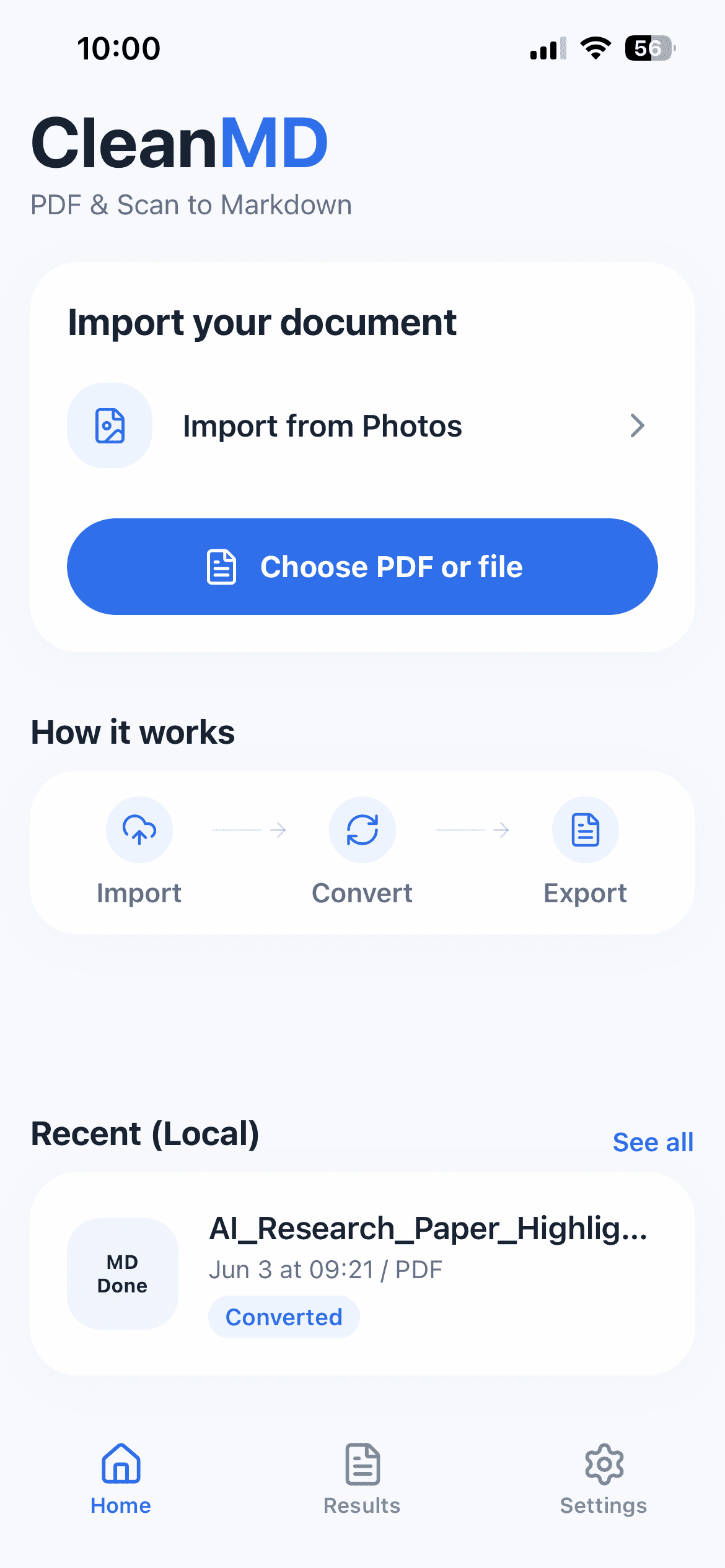
Open CleanMD and choose the screenshot from Photos. CleanMD supports document images as an input, so you do not need to create a PDF first for this workflow.
The selected image is uploaded to a third-party parsing service for conversion. Do not choose screenshots containing sensitive personal, legal, medical, financial, authentication, or confidential information unless you are comfortable with that processing boundary.
Choose the Output for the Next Step
Use plain Markdown when you want a lightweight, portable result. Choose an Obsidian-ready option when the screenshot will become part of a note vault, or an AI-ready option when the next step is a prompt or analysis workflow.
The output mode changes the handoff, not the source quality. A blurred or incomplete screenshot can still require manual correction after conversion.
Preview Before You Export
Review headings, lists, paragraph breaks, punctuation, and any text near the edges of the screenshot. Watch for merged lines when the source contains multiple columns or interface labels beside the main text.
Fix important errors before copying the result into a durable note. If the screenshot captures only part of a longer document, keep that context visible in the title or note so the Markdown is not mistaken for a complete source.
Copy, Save, or Share the Markdown
Copy works well for a quick paste into a note or message. Save is useful when you need a `.md` file, while Share sends the result into another compatible app. Pick one destination instead of exporting several duplicates you will later need to reconcile.
CleanMD keeps local conversion history for convenience, but the source image still follows the upload boundary during parsing. Delete local results you no longer need and keep the original source according to your own retention needs.
When a Different Workflow Is Better
Use a PDF workflow when you already have a multi-page document. Use an iPhone scanning tool first when the source is physical paper and you need to capture several pages. A screenshot-to-Markdown workflow is most useful when the exact information is already visible on the phone and you want editable, reusable text rather than another image.