Copy vs Save vs Share: How to Export Markdown on iPhone
Choose the right export path after converting a PDF or scan: copy for speed, save for durability, or share to another iPhone app.
Try CleanMD: PDF to Markdown on iPhone
Import a PDF, scan, screenshot, or document image, then preview clean Markdown before you export it.
The useful part of document conversion is not just getting text out of a PDF or scan. The useful part is moving that text into the place where you can work with it.
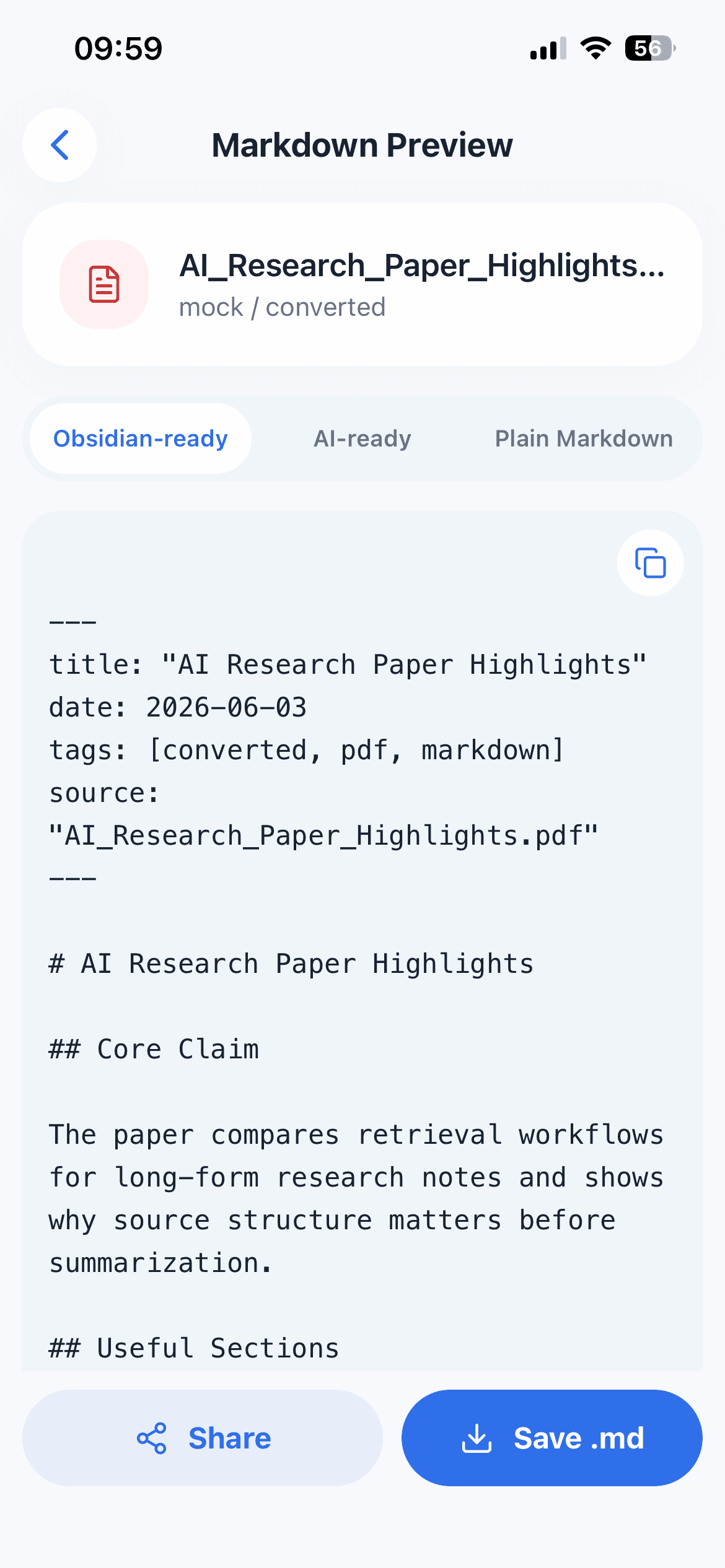
On iPhone, that usually means one of three actions: copy the Markdown, save it as a file, or share it into another app. Each option fits a different workflow.
CleanMD is designed around that handoff. Convert the selected PDF, scan, screenshot, or document image, preview the Markdown, then send it where it needs to go.
Copy Markdown for Fast Reuse
Copying is best when the result is going straight into a note, message, editor, or AI prompt. It is the fastest path when you do not need a separate file.
This is useful for short documents, quick scans, and screenshots where the converted text is only one step in a larger task. For example, you might copy a cleaned meeting note into your task list, or paste a document excerpt into a chat for summarization.
The tradeoff is that copied text can be temporary. If the result matters later, save it somewhere more durable.
Save Markdown When the File Matters
Saving is better when the converted result should become a document of its own. A `.md` file is easier to store, rename, move, and revisit than text that only lived on the clipboard.
This is helpful for research notes, class material, meeting records, or reference documents you expect to keep.
If you use a folder-based Markdown workflow, saving gives you a cleaner handoff from the original PDF or scan into your long-term note system.
Share Markdown When Another App Is the Next Step
Sharing is useful when the destination app is already clear. You may want to send the result to Files, a note app, a writing app, or another tool in your workflow.
The important thing is to avoid treating the conversion app as the final destination. CleanMD is there to help the content cross formats: from PDF, scan, screenshot, or image into Markdown.
Once the result is ready, your main work can continue somewhere else.
A Quick Decision Table
Choose copy when the text is short and the destination is open now. Choose save when the Markdown should remain a file you can rename, move, or back up. Choose share when iOS already offers the destination app or folder you want.
There is no need to use all three actions for every document. Duplicating the same result across the clipboard, Files, and several apps can make the workflow harder to understand. Pick the action that matches the next real use.
Preview Before Moving the Text
Before copying, saving, or sharing, preview the Markdown. A quick review helps you catch broken headings, odd spacing, or text that needs cleanup.
This is especially useful for scans and screenshots, where the original source may be imperfect. The preview step lets you decide whether the output is good enough for a note, a file, or an AI workflow.
It is a small pause, but it prevents messy text from spreading into the rest of your system.
Check the Destination After Export
After saving or sharing, open the destination once. Confirm that the file name is recognizable, headings remain readable, and the receiving app did not remove important Markdown characters.
For copied text, make sure the entire result arrived before replacing the clipboard with something else. For saved files, choose a folder you already use instead of creating a one-off location that will be forgotten.
The Short Version
Use copy for speed, save for durability, and share when another app is already the next destination.
CleanMD keeps those choices close to the conversion workflow: import a document, turn it into Markdown, preview the result, and move it into the tool where it becomes useful.