PDF to Markdown on iPhone: A Step-by-Step Workflow
A five-step iPhone workflow for converting a PDF, scan, screenshot, or document image into reusable Markdown with CleanMD.
Try CleanMD: PDF to Markdown on iPhone
Import a PDF, scan, screenshot, or document image, then preview clean Markdown before you export it.
Most iPhone document workflows stop at a PDF, a scan, or a screenshot. That is useful for storage, but it is not always useful for writing, editing, searching, or asking an AI tool to help with the content.
Markdown is a better handoff format when you want the document to become something you can actually work with. It is lightweight, readable, easy to paste into note apps, and friendly to tools like Obsidian, Notion, editors, and AI chat.
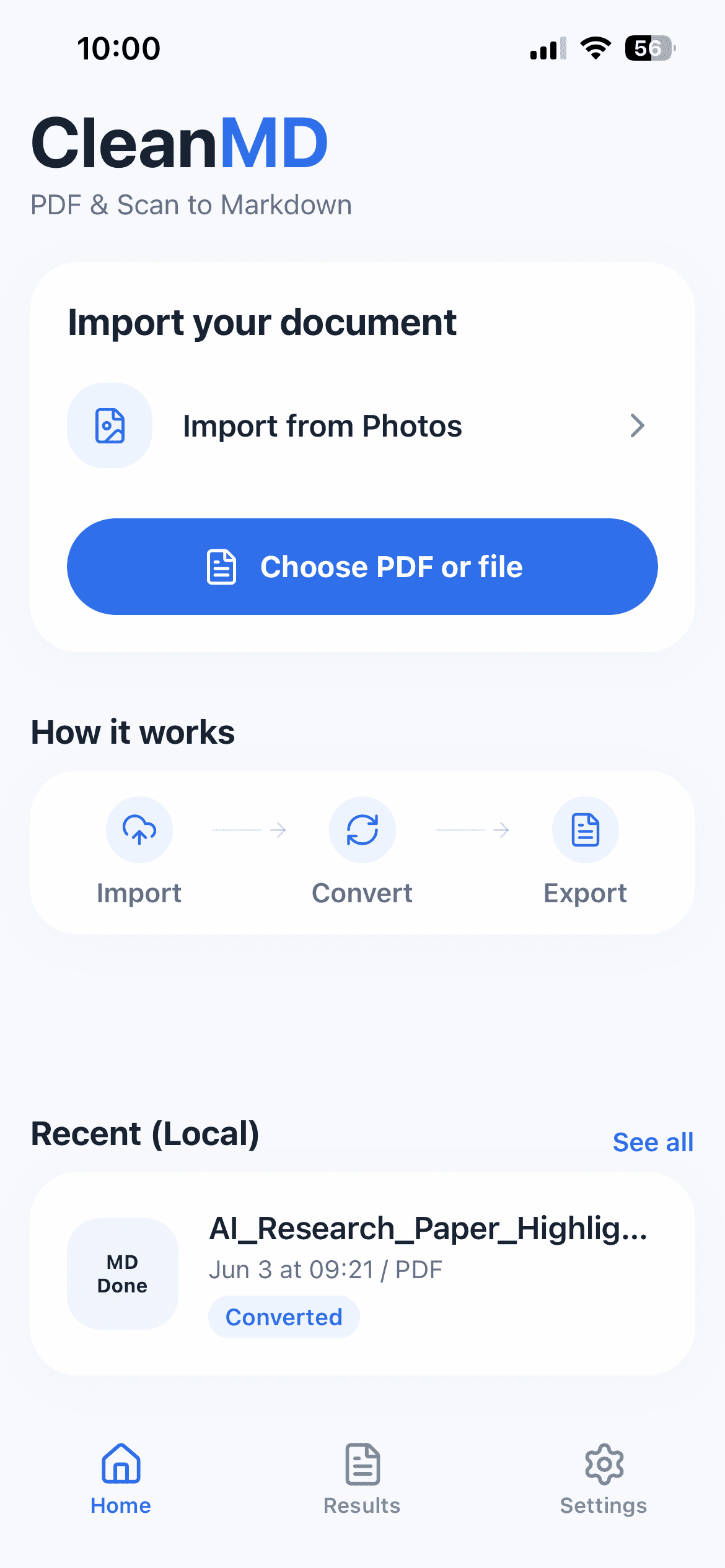
CleanMD is built for that handoff: choose a PDF, scan, screenshot, or document image on your iPhone, convert it into clean Markdown, preview the result, and then copy, save, or share it.
Why Convert a PDF or Scan into Markdown?
PDFs are great when the layout matters. Scans are useful when you need to capture paper quickly. Screenshots are convenient when a document is only available on your phone.
But once you need to reuse the information, those formats can slow you down. You may want to extract meeting notes, quote a paragraph, summarize a handout, clean up a scanned page, or turn a document into a prompt for an AI workflow.
Markdown keeps the result simple. You get plain text with structure, headings, lists, and readable paragraphs. That makes it easier to revise, search, and move between tools without dragging a heavy file format behind it.
A Practical iPhone Workflow
Start by importing a document from Files or Photos. This can be a PDF, a scanned page, a screenshot, or a document image. CleanMD is meant for short, practical conversion sessions, so the main path stays focused: import, convert, preview, export.
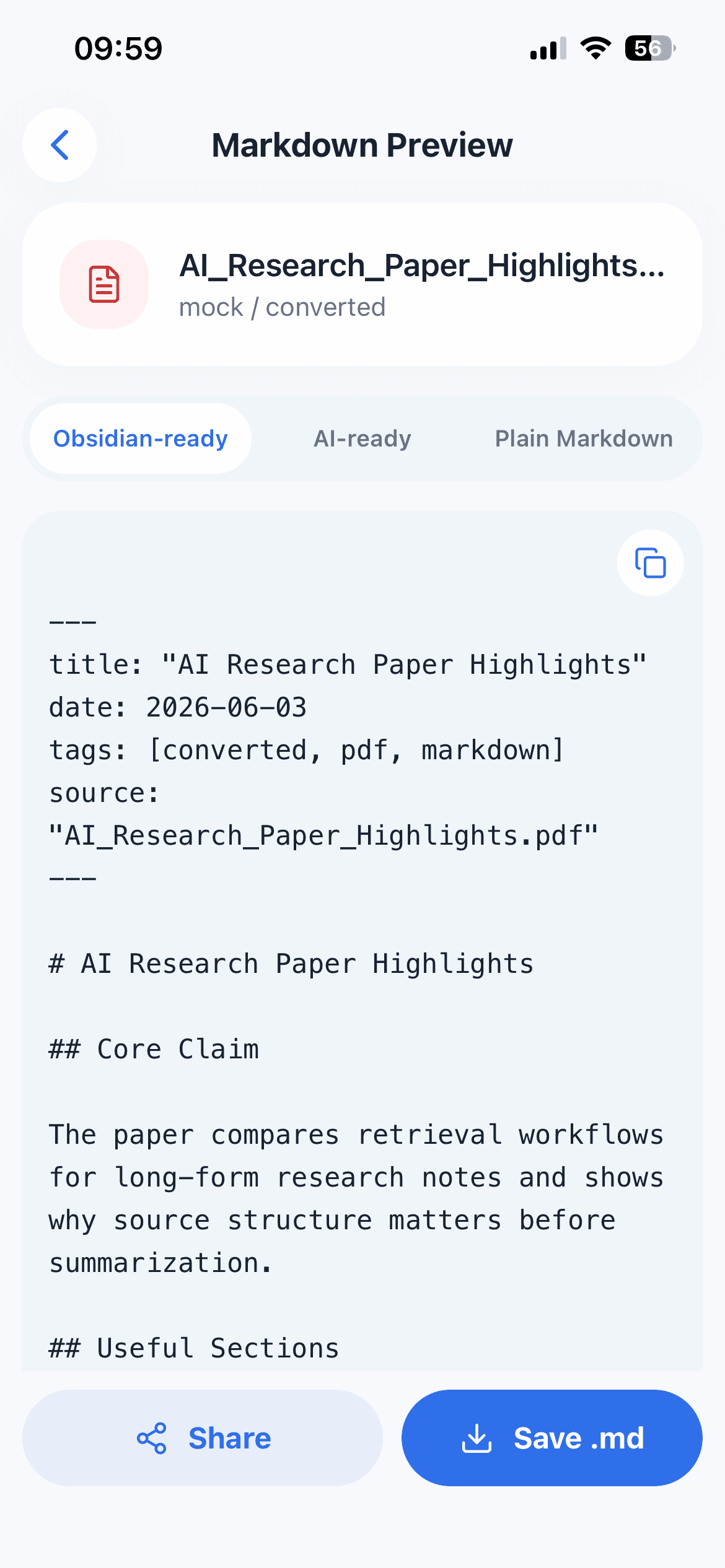
After conversion, review the Markdown before sending it anywhere else. This matters because document conversion is rarely perfect. A quick preview helps you catch spacing issues, broken headings, or text that needs light cleanup.
When the result looks right, copy it, save it, or share it into the next place in your workflow. For example, you can move it into a Markdown note, a writing draft, a knowledge base, or an AI prompt.
Five Steps from Source File to Reusable Markdown
- Choose one supported PDF or image from Files or Photos.
- Confirm the upload boundary before conversion begins.
- Select Obsidian-ready, AI-ready, or plain Markdown based on the next destination.
- Preview headings, lists, line breaks, and any text recovered from a scan.
- Copy, save, or share the result into the place where it will actually be used.
This sequence matters because conversion quality and destination are separate decisions. A result can be technically readable but still need a different output mode or a quick cleanup before it becomes a durable note.
Where This Helps Most
CleanMD is useful when the source document is temporary but the content is valuable. A class handout, a meeting photo, a quick paper note, a receipt-like reference, or a screenshot of an article can all become easier to reuse once the text is in Markdown.
It is also helpful when you do not want to build a full desktop workflow just to process one document. If the file is already on your iPhone, the workflow should stay on your iPhone.
Privacy Boundary to Keep in Mind
CleanMD does not claim that conversion happens entirely on device. To convert a selected file, the app uploads it to a third-party document processing service.
That is important for the kind of document you choose. Do not upload sensitive personal, legal, medical, financial, or confidential documents unless you are comfortable with third-party processing.
For everyday non-sensitive documents, the workflow is simple: select the file, convert it, preview the Markdown, and send the result where it needs to go.
The Short Version
If you already use Markdown, CleanMD helps bridge the gap between documents you receive and text you can work with.
If you do not use Markdown yet, the benefit is still simple: your PDF, scan, or screenshot becomes cleaner, easier-to-edit text on your iPhone.
CleanMD keeps that bridge focused: import a document, turn it into Markdown, review the result, and continue with your notes, writing, or AI workflow.