How to Import a Baby Word List From Notes on iPhone
Copy a baby word list from Apple Notes, paste it into BabyTracker Batch mode, review duplicates and spelling, and save only confirmed local records.
Try BabyTracker: Words & Food on iPhone
Paste a copied word list into Batch mode, review every candidate, and save only confirmed local records.
To import a baby word list from Notes on iPhone, copy the words from your note, paste them into BabyTracker's Batch mode, review the candidate list, and save only the entries you want in the local word journal.
This is a copy-and-paste workflow rather than a direct Apple Notes connection. BabyTracker does not read your Notes library or import an entire note automatically.
Prepare a Simple List in Notes
Start with one word or short phrase per line. A space-separated list also works for single words. Commas, semicolons, and common punctuation can separate entries, but a clean line-by-line list makes the review step easier.
Remove dates, headings, comments, and long sentences before copying. Keep context such as who said the word or where it happened for later notes instead of mixing it into the word list.
Paste the List Into Batch Mode
Open Add Word, switch from Single to Batch, and paste the copied text. Choose Prepare List to turn the text into editable candidates.
BabyTracker accepts up to 6,000 input characters and prepares up to 120 unique candidates at a time. Longer lists should be split into smaller groups so every entry can be reviewed without guessing what was skipped.
Review Every Candidate Before Saving
The candidate screen is the important control point. Edit spelling, remove an accidental fragment, and deselect anything that is not a real word record. Existing words are marked as duplicates and are not selected for another save.
The app can suggest a category and everyday scene from the word text, but those are organizational helpers. They are not developmental assessments. Check the wording and selection yourself before saving.
Save Only the Selected Words
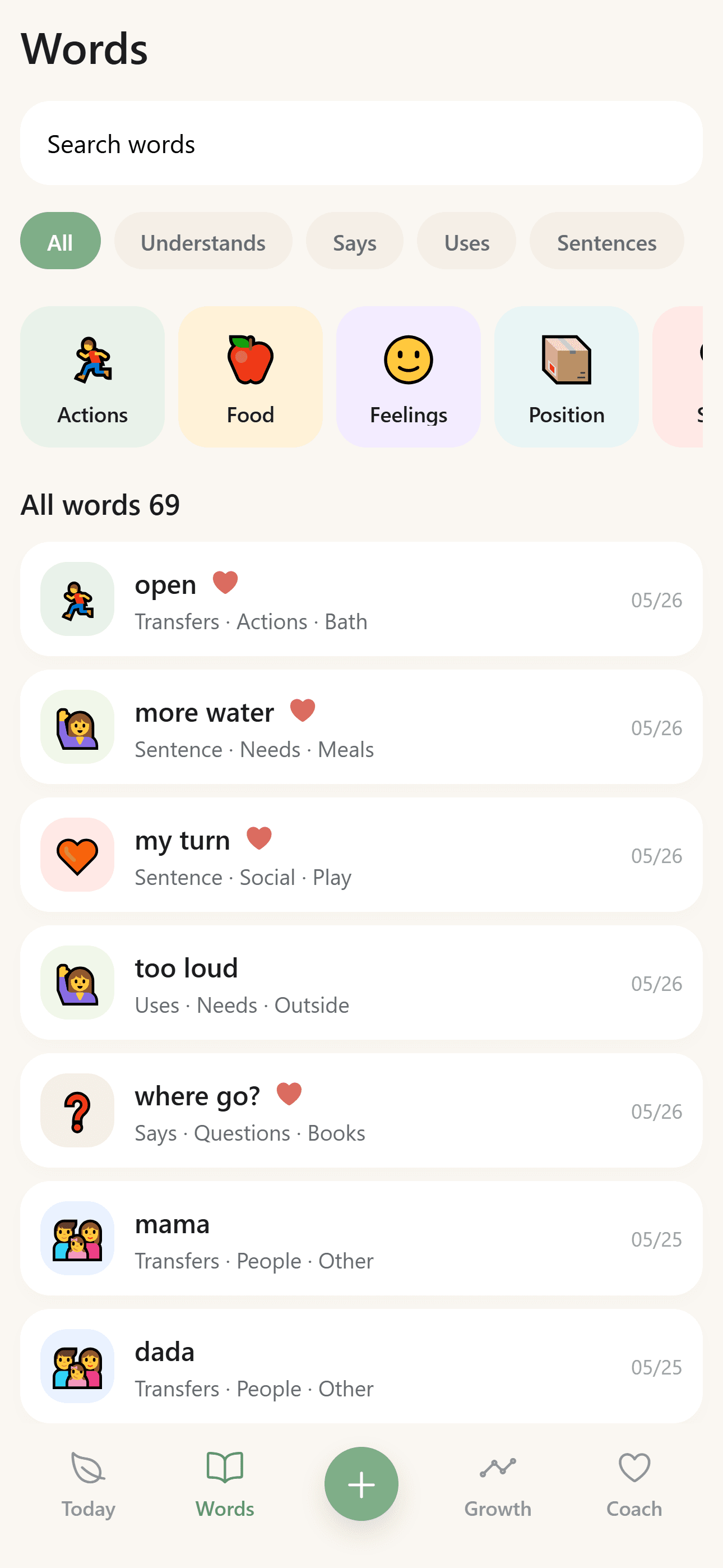
Choose Save Selected after the list looks right. The selected records are added to the local word journal on the iPhone. You can then search, filter, edit, or delete them from the Words screen.
Core word recording does not require an account or cloud sync. That local-first boundary also means this batch import is not an automatic backup of the original Apple Note. Keep or remove the source note according to your own record-keeping needs.
Handle Phrases and Duplicates Carefully
Batch mode is designed mainly for one-word entries and short phrases. Because spaces can separate candidates, a multiword expression may need to be entered separately in Single mode if you want it preserved exactly.
Duplicate detection helps avoid repeated records, but it does not decide whether two differently spelled expressions mean the same thing. Review near-duplicates such as singular and plural forms yourself.
A Practical Import Checklist
Before saving, confirm that each candidate is a word or short expression you actually observed, that spelling is correct, and that duplicates are intentionally excluded. After saving, open the word library and spot-check the new entries.
This workflow turns a loose Notes list into structured local records while keeping the parent in control of what is imported. It does not scan Notes automatically, infer medical or developmental conclusions, or save candidates without confirmation.