How to Set Multiple Daily Medication Reminders on iPhone
Add multiple daily reminder times for one medication on iPhone, keep the Today view readable, and use each alert only as a personal reminder.
Try Dose Reminder Lite on iPhone
Create personal medication reminders, mark doses as taken or skipped, and review recent records stored locally on your iPhone.
Creating separate medication entries for every time of day can make a simple routine harder to scan and maintain.
Confirm the Established Schedule First
Use reminder times that come from the instructions you already follow. If the timing, dose, meal relationship, or response to a missed dose is unclear, ask a clinician or pharmacist rather than using an app to decide.
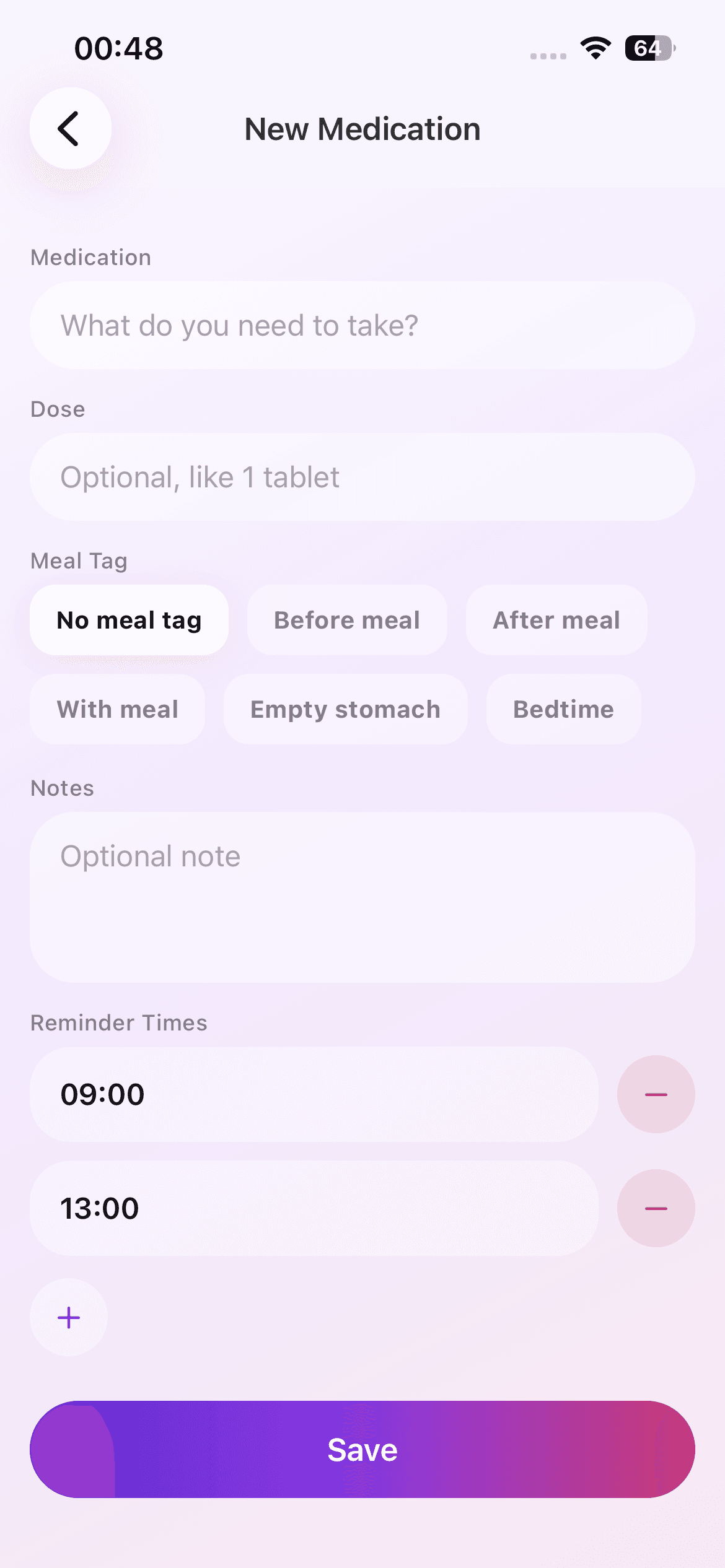
Dose Reminder Lite does not calculate schedules, assess interactions, or tell you when a medication should be taken. It only stores the reminder times you choose.
Add More Than One Time to a Single Entry
Create or edit the medication, then add each daily reminder time to the same item. This keeps the name and optional display context together while producing separate daily due states.
Review the list of times before saving. A mistyped morning or evening time can make the entire routine confusing, so compare it with the source instructions.
Keep Display Context Simple
Meal tags such as before meal, after meal, with meal, empty stomach, or bedtime are labels for the routine you already have. They are not generated medical instructions. Use a label only if it accurately reflects professional or product guidance.
An optional note can hold a short personal cue. Avoid turning the note field into a substitute for prescription directions or professional records.
Read Each Time as a Separate Reminder State
On the Today screen, each time can appear as due, upcoming, taken, or skipped. Mark the specific reminder after the real-world action. Multiple times for one medication should not be treated as interchangeable entries.
Use the Records view to review what was marked in the app. Remember that a tap is a personal log, not independent verification of ingestion.
Test Notification Permission Safely
Confirm that iPhone notification permission is enabled and that Focus settings are compatible with the reminders you expect. Consumer notifications are not guaranteed, so keep critical routines supported by the plan recommended by your care team.
For missed doses, unexpected symptoms, or uncertainty about timing, follow professional guidance. Do not double, delay, or change a dose because of an app state alone.
A Multi-Time Reminder Checklist
Review the full set of times as one schedule before saving. Check for accidental duplicates, morning-evening mistakes, and old times that no longer match the established instructions. Then inspect the Today view to confirm that each expected reminder appears separately.
If the schedule changes, edit the entry only after the new instructions are clear. Keeping old and new entries at the same time can create ambiguity, which is exactly what a reminder system is meant to reduce.