How to Set Up a Trip Countdown and Departure Reminder on iPhone
Create a trip countdown on iPhone, choose a useful departure reminder, and turn the days remaining into a short travel preparation plan.
Try Date Countdown Lite on iPhone
Create an important date, see the number of days remaining, and optionally schedule a local reminder on your iPhone.
A trip feels far away until the days remaining become small enough to expose everything that still needs to happen.
Use the Departure as the Anchor
Create the event for the actual departure date. If you have several legs, start with the first date that requires you to leave home or take action. A clear anchor prevents the countdown from becoming a vague vacation wish.
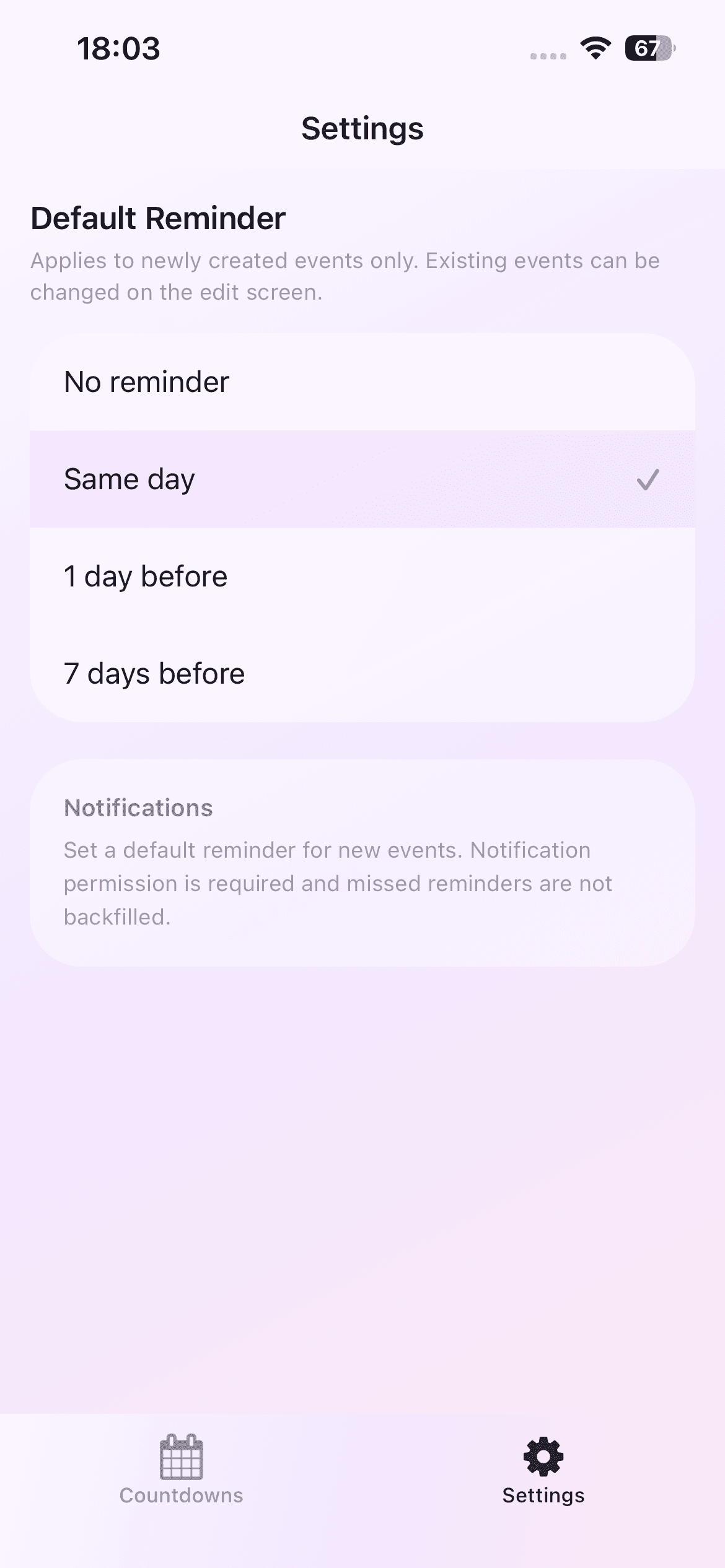
Name the event so it is easy to scan, such as 'Tokyo departure' or 'Family road trip'. The event list then shows the days remaining next to the title.
Translate Days Remaining into Preparation Windows
Different tasks belong at different distances from the trip. Documents and reservations often need attention early. Packing and device charging happen closer to departure. A day-based countdown makes those windows easier to recognize.
Keep detailed checklists in the tool you already use. The countdown's job is to keep the date and urgency visible, not to replace a full travel planner.
Pick the Reminder for the Most Important Missable Step
Seven days before can trigger a document, weather, or reservation check. One day before can trigger packing and charging. Same-day reminders are useful for a final departure check when most preparation is already complete.
Choose a reminder time that fits the action. A seven-day reminder during a quiet evening can be more useful than a notification during a busy commute.
Edit the Countdown When Travel Changes
Flights and plans move. Update the saved date when the departure changes rather than creating a second event. Open the detail view afterward and verify the new countdown.
Delete cancelled trips so they no longer appear as active future events. A small, current list is more helpful than a complete archive.
Know the Local Reminder Boundary
Date Countdown Lite stores trip titles, dates, and reminder settings locally and has no account or cloud sync. Notifications depend on iPhone permission and system delivery, so they should support your travel plan rather than become the only place critical information exists.
Keep tickets, identity documents, and official itinerary details in their appropriate secure locations. Use the countdown for visibility and timing.
A Travel Countdown Checklist
Verify the departure date against the confirmed itinerary, then decide what must be true seven days before, one day before, and on departure day. Typical categories include documents, reservations, transport, packing, charging, and home arrangements, but the details belong in the secure tools that hold the trip itself.
If the itinerary includes a timezone change, remember that the app shows a calendar-day countdown. Use the airline, rail, or booking source for exact departure times and changes.