How to Track Important Dates and Deadlines on iPhone
Build a simple iPhone system for birthdays, exams, deadlines, trips, and other important dates with clear day countdowns and local reminders.
Try Date Countdown Lite on iPhone
Create an important date, see the number of days remaining, and optionally schedule a local reminder on your iPhone.
Important dates are easy to remember in theory and surprisingly easy to lose inside a crowded calendar.
Why Important Dates Get Lost
A calendar is excellent for meetings and timed appointments, but it is not always the fastest place to answer a simpler question: how many days are left? Birthdays, exams, application deadlines, paydays, trips, and anniversaries often matter long before the day itself arrives.
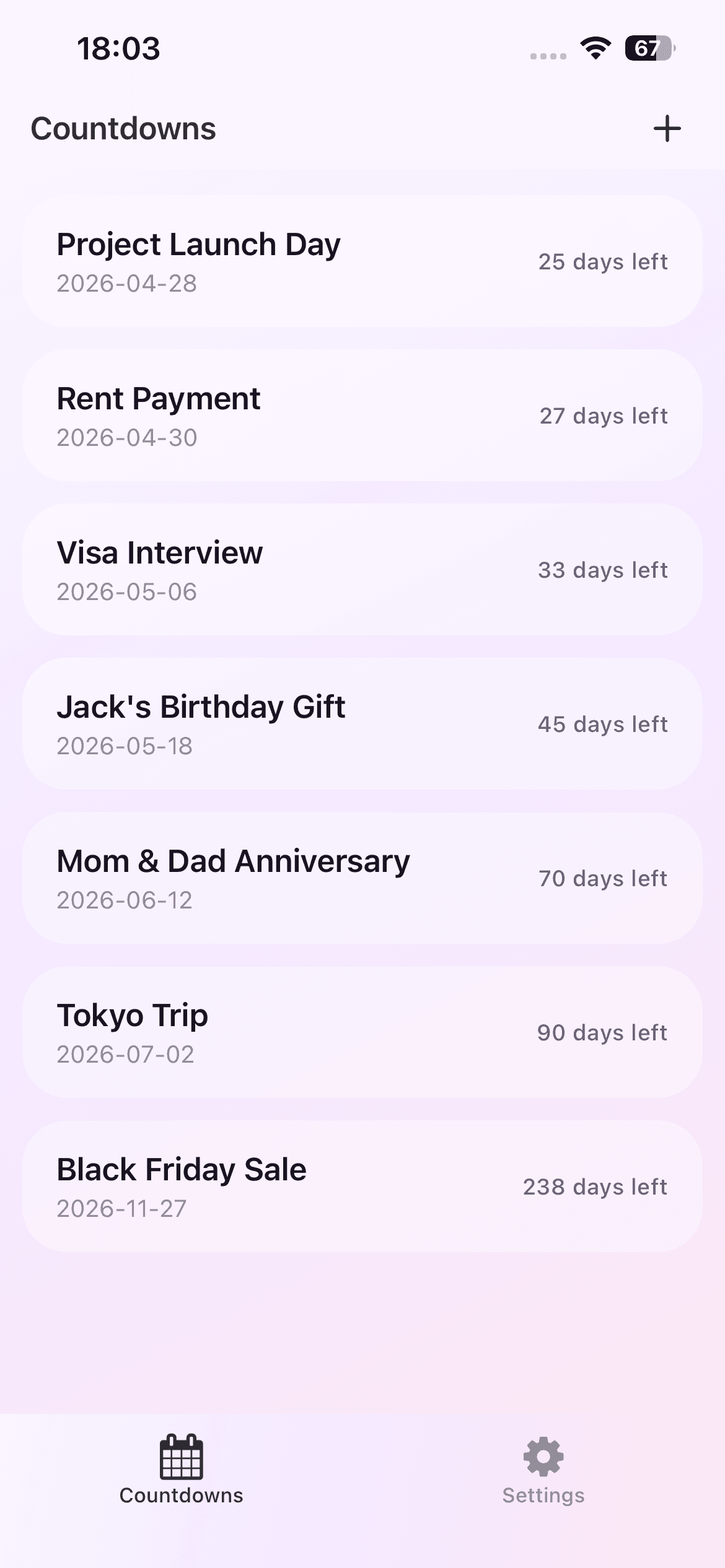
The problem is usually not a lack of information. The date already exists somewhere. The problem is that it does not stay visible enough to shape today's decisions. A dedicated countdown list makes the remaining time the primary signal instead of another small entry in a month grid.
Choose Dates That Deserve a Countdown
Start with dates that change what you do before they arrive. An exam date may affect a study plan. A trip departure may trigger packing and document checks. A birthday may require a gift or message. A deadline may need several preparation steps.
Avoid adding every date you can think of. A short, high-value list is easier to scan and maintain. A useful test is whether seeing the days remaining would change a decision this week.
A Simple iPhone Workflow
Create one event with a clear title and the actual calendar date. Date Countdown Lite then shows a day-based countdown in the event list. Open the event when you need its exact details, and edit or delete it when the plan changes.
For a date that needs a nudge, choose a local reminder for the same day, one day before, or seven days before, then select a useful time. Notification permission is optional. The event can still be saved if reminders are not enabled.
Use Reminders as Preparation Triggers
A reminder works best when it points to a concrete next action. Seven days before a trip can mean checking travel documents. One day before an exam can mean packing materials. The same day may be enough for a birthday message.
This keeps the countdown and the reminder in different roles: the countdown provides ongoing awareness, while the reminder creates one timely prompt.
Keep the System Small and Current
Review the list when a date changes or passes. Edit dates that moved, delete items that no longer matter, and resist turning the app into a second full calendar. The value comes from keeping a small set of important future moments visible.
Date Countdown Lite stores event data locally on the iPhone. There is no account or cloud sync in the current version, so the list is intentionally personal and device-based.
A Quick Weekly Review
Once a week, scan the list from nearest to farthest. Ask whether the date is still correct, whether the reminder timing still supports the real task, and whether an event has become irrelevant. This takes less time than rebuilding the system after duplicate or stale entries accumulate.
For dates that require several actions, let the countdown remain the visible anchor and keep the task details in a checklist or project tool. That division prevents one small utility from becoming overloaded while still giving the deadline a stable place on the iPhone.