How to Set Up a Payday Countdown and Reminder on iPhone
Create a manual payday countdown on iPhone, choose a useful reminder lead time, and handle multiple payment dates without payroll or bank access.
Try Date Countdown Lite on iPhone
Add a confirmed payday, choose a local reminder, and keep the days remaining visible on your iPhone.
A payday countdown on iPhone answers a specific question quickly: how many days are left until the next expected pay date? It can also provide one local reminder before that date without connecting to payroll, a bank, or an employer system.
Confirm the Expected Pay Date
Start with the official date shown by your employer, payroll portal, contract, or other trusted source. Enter that date as a new event and give it a clear title such as “August payday” or “Client payment due.” A specific title is easier to recognize than a generic label when the notification appears.
Date Countdown Lite uses the date you enter. It does not discover payroll schedules, calculate earnings, read bank deposits, or adjust a payday automatically. If the official date changes, edit the event so the countdown still reflects the source you trust.
Choose a Useful Reminder Window
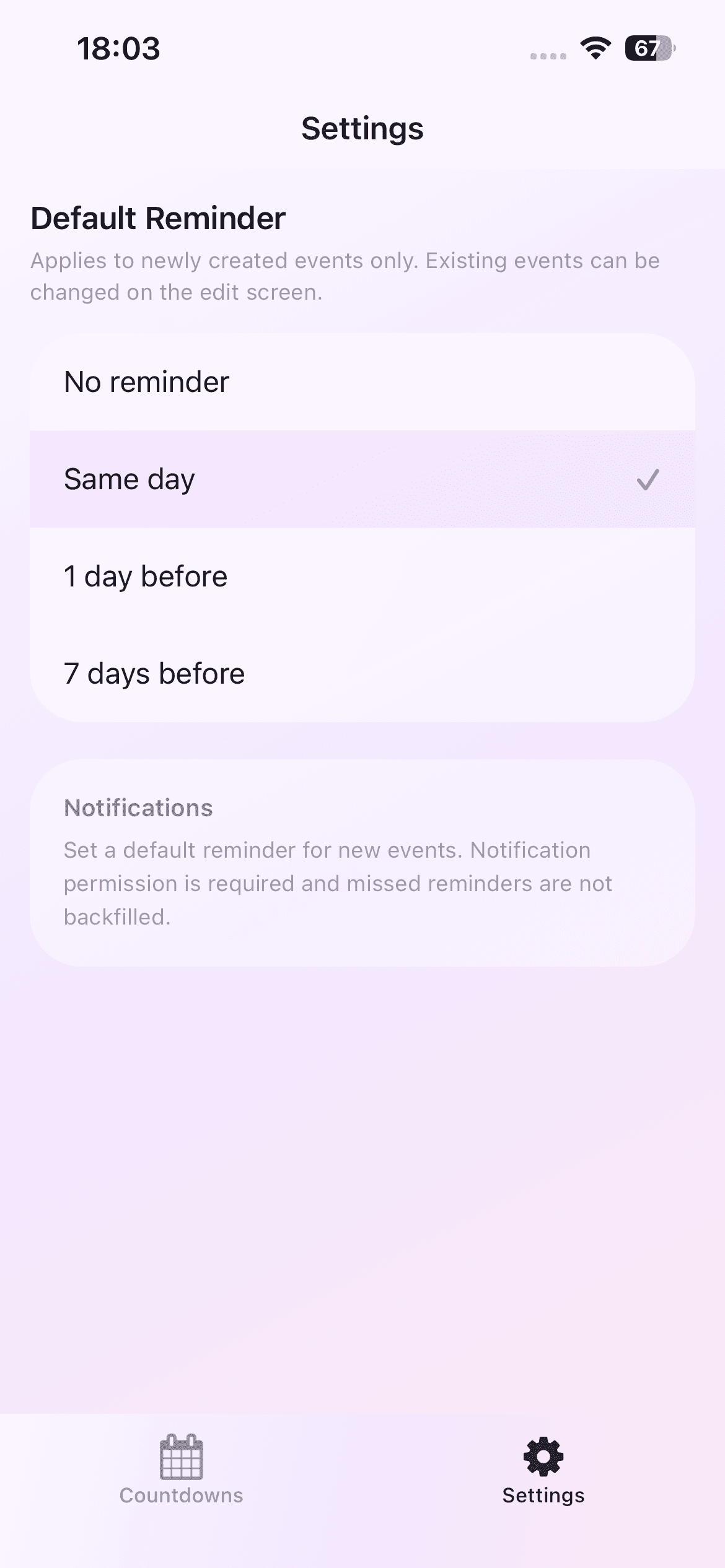
The app supports same-day, one-day-before, and seven-day-before local reminders with a custom time. Pick the lead time based on the action you need to take.
A same-day reminder may be enough when you only want to check that a payment arrived. One day before can be useful for reviewing an account or preparing a transfer. Seven days before provides more planning time, but it may be too early for a simple deposit check.
The reminder is a prompt, not a payment guarantee. iPhone notification permission and system delivery conditions still apply.
Use Separate Events for Different Income Dates
If you expect more than one payment, create a separate countdown for each date. For example, a salary date and a freelance invoice date represent different commitments and may need different reminder timing.
Avoid putting several uncertain dates into one title. A separate event makes the days remaining and the source of each expected payment easier to review. Delete an event after it is no longer useful, or edit it when the next confirmed date is available.
Handle Weekends and Holidays Carefully
Do not assume that an app can determine how an employer, client, bank, or payment platform handles weekends and holidays. Some payments move earlier, some move later, and some follow contract-specific rules.
Check the official schedule before changing the countdown. Date Countdown Lite does not contain a payroll calendar or banking rules, so the entered date should remain a personal reference rather than financial confirmation.
Keep the Countdown Local and Simple
The current version stores events locally on the iPhone and has no account or cloud sync. That keeps setup small: add a title, choose the expected date, select an optional reminder, and review the days remaining.
This workflow is useful for visibility, but it is not payroll, accounting, budgeting, or financial advice. Keep official payment records in the system that issued them, and use the countdown only as a personal planning aid.